
The Problem: Your Shell Remembers Everything
It’s incredibly common to pass passwords and other secrets directly to utilities on the Linux command line. Maybe you’re running a database migration, authenticating with an API, or connecting to a remote service. The problem? Your shell saves every command you type into a history file like ~/.bash_history, which means that plaintext credential is now sitting on disk indefinitely.
You could try to remember to clear your history after every sensitive command, but that’s fragile and error-prone. A much better approach is to prevent the credential from being recorded in the first place.
The method below uses built-in shell features—no extra tools required—to securely read, use, and clean up secrets in your terminal session.
The Workflow
1. Read the secret securely
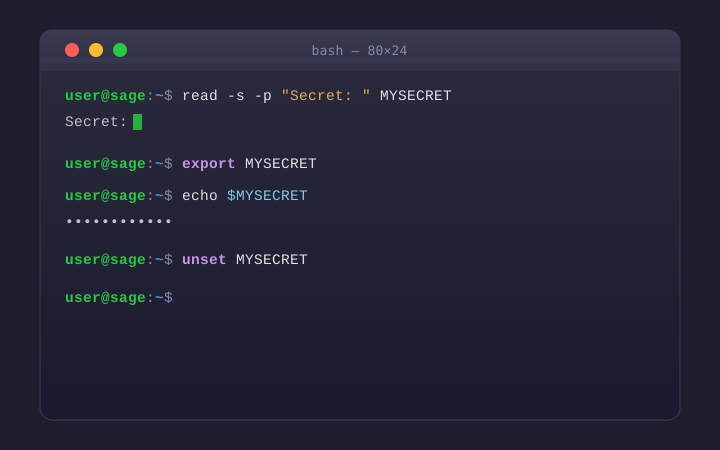
Use the read built-in with the -s (silent) flag to capture the credential into a shell variable. Because the password is read from standard input—not typed as part of a command—it never appears in your shell history.
read -s -p "Secret: " MYSECRET
The -s flag suppresses the input so it won’t be echoed on screen, and -p provides a visible prompt. You’ll type (or paste) your password and press Enter—nothing will appear on screen, which is expected.
⚠ Watch Out for Backslashes
All special characters except \ work with this approach as-is. The read command interprets backslashes as escape characters, so they’ll be silently removed. If your password contains a literal backslash (for example, Test\ing), you’ll need to escape it by typing Test\\ing at the prompt. If you use a password manager to generate credentials, double-check for backslashes before pasting.
2. Export it as an environment variable
The read command creates a shell variable, which is only available to the current shell. To make it accessible to child processes and other programs, export it:
export MYSECRET
3. Use the variable in your commands
Now you can reference $MYSECRET anywhere you’d normally supply a password. Any tool that reads environment variables will pick it up automatically.
# Example: verify the value was captured correctly
echo $MYSECRET

# Example: use with a CLI tool
some-tool --password $MYSECRET
4. Clean up when you’re done
Once you’re finished, remove the variable from your environment so it doesn’t linger in memory:
unset MYSECRET
💡 Tip
This technique works in Bash, Zsh, and most POSIX-compatible shells. It’s a good habit to adopt any time you’re working with passwords, API keys, tokens, or any other sensitive data on the command line.
Quick Reference
Here’s the full workflow at a glance—four commands, no history exposure:
# 1. Read the secret (input is hidden)
read -s -p "Secret: " MYSECRET

# 2. Export to environment
export MYSECRET

# 3. Use it
some-tool --password $MYSECRET

# 4. Clean up
unset MYSECRET